

Download EyeConnect – Free Media Server for Mac, PS3, UPnP Devices
Overview
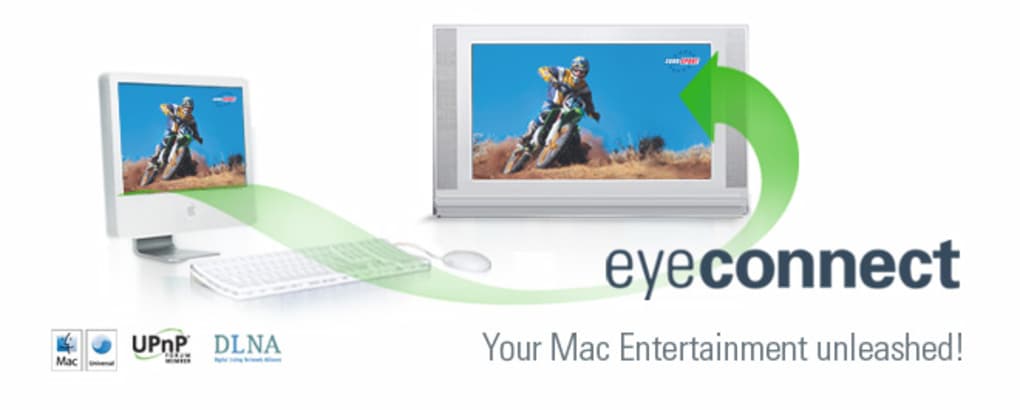
EyeConnect is a lightweight yet powerful media server application designed for macOS users who want to share their entire multimedia library across a home network. By automatically scanning for UPnP AV devices, EyeConnect can locate any compatible player—such as a PlayStation 3, smart TV, or networked stereo—and instantly stream video, music, and photos directly from your Mac. The software supports a broad range of formats, including DivX, Xvid, WMV, JPEG, and even your iTunes library, meaning you won’t need to convert files before playback.
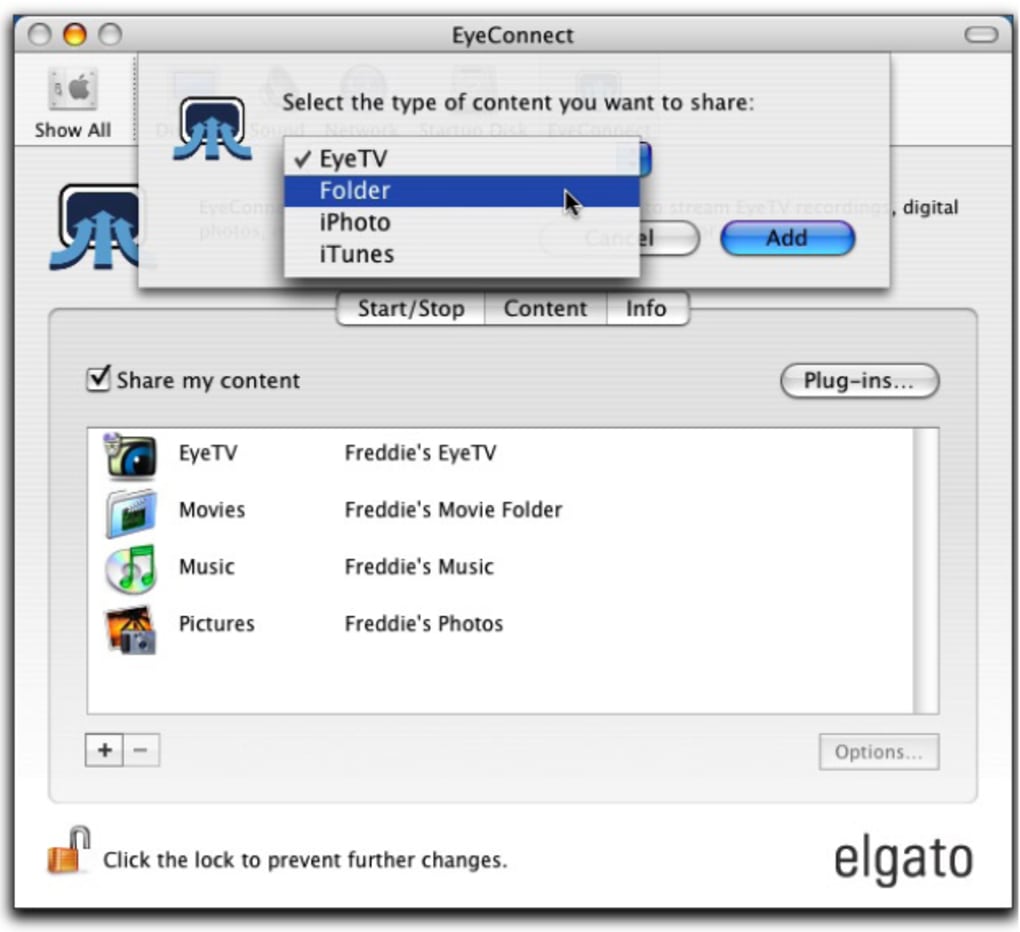
Installation is a matter of minutes: once the program is launched, it detects connected devices, lets you choose which folders to share, and presents a clean‑cut preference pane for fine‑tuning settings. While most options require the server to be stopped before changes can be applied, the interface is intuitive enough that even beginners can set up a full‑featured media center without digging into complex networking jargon. EyeConnect also offers optional transcoding plugins that convert unsupported files on the fly, expanding the reach of older or limited UPnP devices.
Whether you’re a movie enthusiast, a music lover, or someone who wants to browse family photos on a big screen, EyeConnect provides a secure, reliable, and free solution that turns any UPnP‑enabled hardware into a full‑blown digital media hub.
Key Features
- Automatic UPnP device discovery – no manual IP configuration needed.
- Broad format support – play DivX, Xvid, WMV, MP3, AAC, FLAC, JPEG, PNG, and iTunes libraries.
- On‑the‑fly transcoding – two built‑in plugins convert unsupported video/audio streams in real time.
- Granular folder sharing – select exact directories to expose to your network devices.
- Device whitelist/blacklist – allow or deny individual UPnP devices for added security.
- Customizable port selection – avoid conflicts with other network services.
- Simple preference pane – intuitive UI for managing server settings, plugins, and shared folders.
- Low‑resource footprint – runs smoothly on older Macs without draining CPU or RAM.
- Secure network traffic – optional encryption for sensitive media streams.
- Seamless iTunes integration – preserve playlists and library structure across devices.
Installation & Usage Instructions
Getting EyeConnect up and running is straightforward. First, download the latest .dmg file from the official website and open it to mount the installer. Drag the EyeConnect icon into your Applications folder, then launch the app.
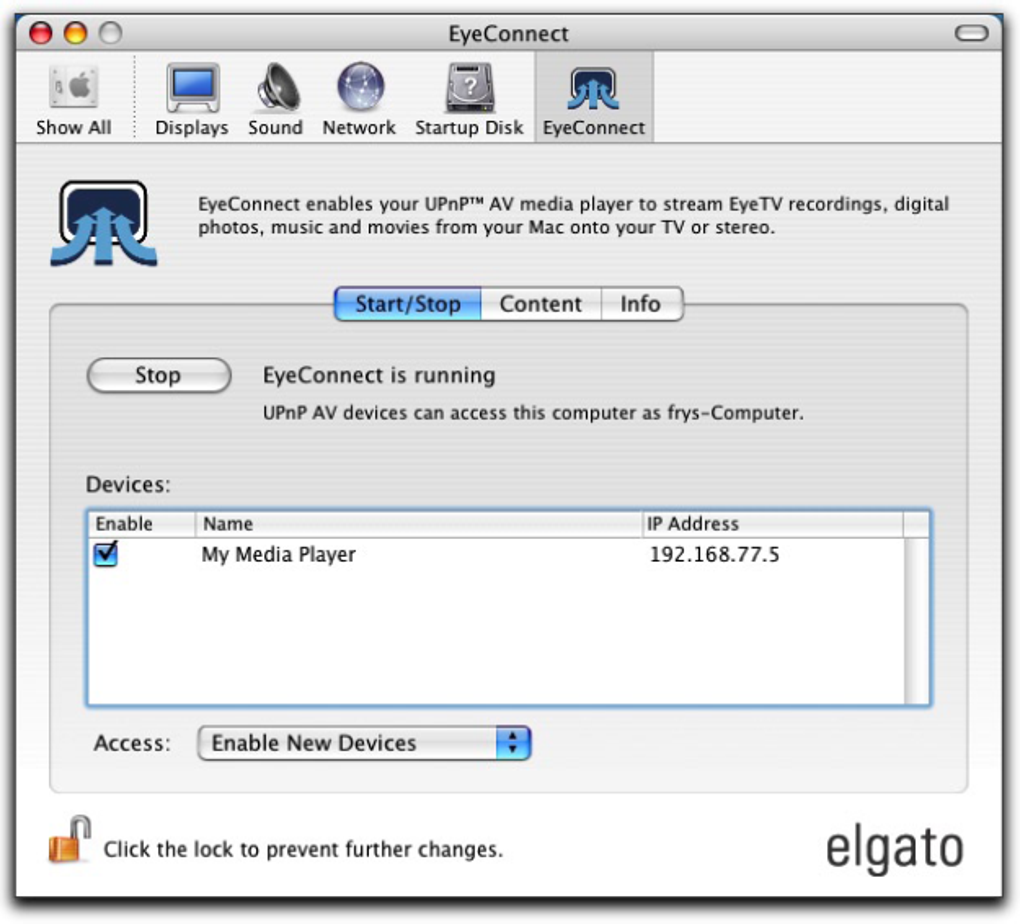
On first start, the program will prompt you to grant access to your Media folders; this step is essential for the server to index your content. Once permission is granted, EyeConnect automatically scans your local network for UPnP AV devices. Detected devices appear in the “Devices” tab, where you can click to enable or disable them individually.
To share a folder, navigate to the “Shared Folders” pane, click the “+” button, and browse to the directory you wish to expose (e.g., Movies, Music, Photos). Remember to stop the server before making any changes; simply click the “Stop Server” button, adjust your settings, then click “Start Server” to apply them.
Streaming begins by selecting a device from the list (for example, a Sony PlayStation 3) and browsing the shared folders from the device’s media UI. EyeConnect handles the necessary DLNA handshake behind the scenes, so you’ll see your files appear almost instantly. If you encounter a file format not natively supported by the target device, enable one of the two transcoding plugins in the “Plugins” section.
The server will then convert the file on the fly, ensuring smooth playback without manual conversion. For advanced users, the “Network Settings” tab lets you specify a custom port (default is 8200) and toggle encryption for added privacy. Finally, the application includes a “Log” window that records connection events and any transcoding actions, useful for troubleshooting occasional hiccups.
Compatibility, Pros & Cons
EyeConnect is built exclusively for macOS (10.10 Yosemite and later) and leverages the native Bonjour service for device discovery. While the server itself runs only on Mac, any UPnP‑compliant device—such as PlayStation 3, Xbox 360, Roku, Samsung Smart TV, or networked audio receivers—can act as a client. The application has also been tested with EyeTV 3.4, confirming smooth interaction when using the EyeTV tuner as a source for live TV streams. Mobile platforms (iOS, Android) are not directly supported as server hosts, but they can still receive streams from the Mac‑based EyeConnect server using any DLNA/UPnP client app.
Pros
- Free and easy to install – no hidden fees or trial limitations.
- Broad format compatibility reduces the need for pre‑conversion.
- Automatic device detection saves time and eliminates manual configuration.
- On‑the‑fly transcoding extends support to older or limited UPnP players.
- Low system resource usage keeps your Mac responsive while streaming.
- Secure networking options protect your media from unauthorized access.
Cons
- Only two built‑in transcoding plugins; advanced users may need external tools.
- Settings cannot be changed while the server is running, requiring a stop/start cycle.
- No native Android or iOS server version – limited to Mac hosts.
- Interface, while clean, lacks some modern visual polish found in competing apps.
- Documentation is minimal; users may need to rely on community forums for troubleshooting.
Overall Rating: 4.2/5 – EyeConnect delivers a solid, free media server experience for Mac users, especially those with PlayStation 3 or similar UPnP devices.
Frequently Asked Questions
Can EyeConnect stream live TV from an EyeTV tuner?
Yes. When paired with EyeTV 3.4, EyeConnect can expose live TV channels as part of its media library, allowing UPnP devices to tune in directly.
Do I need to purchase additional transcoding plugins?
EyeConnect ships with two built‑in transcoding plugins that cover the most common formats. For niche codecs, you may need external tools, but most users find the supplied plugins sufficient.
Is the software safe to use on a home network?
Absolutely. EyeConnect supports optional encryption and lets you whitelist or blacklist specific devices, giving you full control over who can access your media.
Can I run EyeConnect on Windows or Linux?
No. EyeConnect is a macOS‑only application. However, Windows and Linux users can still receive streams from a Mac running EyeConnect via any UPnP client.
How do I update EyeConnect to the latest version?
The app checks for updates at launch and notifies you when a new release is available. You can also download the latest installer from the official website and replace the existing application.
Conclusion & Call to Action
EyeConnect stands out as a free, easy‑to‑use media server that transforms any Mac into a full‑featured digital hub for UPnP devices. Its automatic device detection, extensive format support, and on‑the‑fly transcoding make it an attractive choice for households with a mix of legacy and modern hardware. While the limited number of transcoding plugins and the requirement to stop the server for configuration changes may be minor inconveniences, they do not outweigh the overall value and simplicity the software provides. If you own a PlayStation 3, a smart TV, or any DLNA‑compatible audio system, installing EyeConnect is a quick way to unlock your entire media collection without purchasing expensive third‑party solutions.
Ready to bring your Mac’s movies, music, and photos to the big screen? Download EyeConnect now and start streaming in minutes. Enjoy a secure, free, and hassle‑free media experience—your digital life deserves it.







